TP-Link Router Setup for Smartphone: A Step-by-Step Guide
In today's digital age, having a reliable and fast internet connection is essential for both personal and professional purposes. TP-Link routers are popular among users due to their ease of use and affordability. However, setting up a TP-Link router can be a daunting task for those who are not tech-savvy. In this article, we will guide you through the TP-Link router setup process for smartphone users.
Requirements
To set up your TP-Link router using your smartphone, you will need:
- A TP-Link router (any model will do)
- A smartphone (iOS or Android)
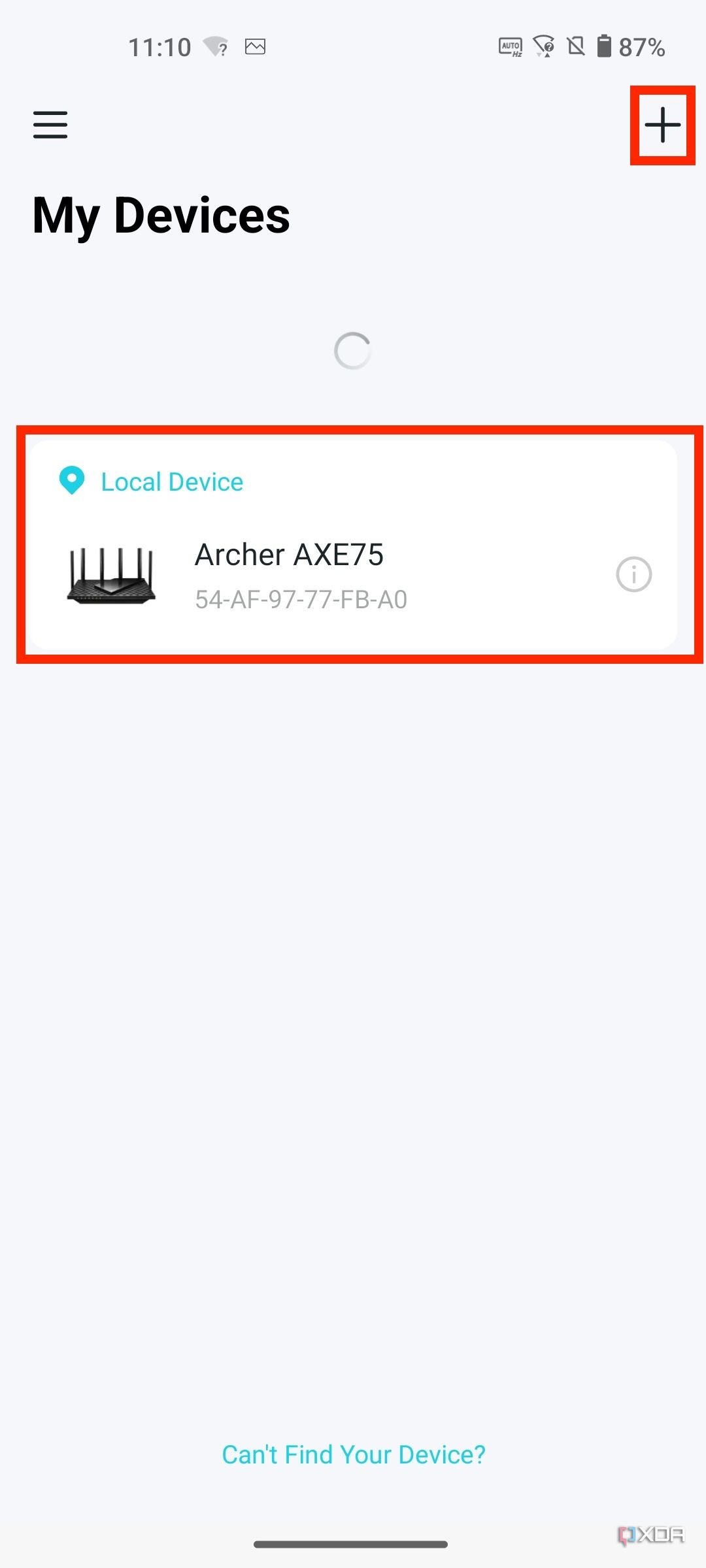
- The Tether app (available for download on Google Play or Apple Store)
Step 1: Connect Your Smartphone to the TP-Link Wi-Fi

First, connect your smartphone to the TP-Link Wi-Fi network. The default wireless network name and password of your TP-Link router are printed on the bottom label.
Alternative Method: Using the QR Code
Alternatively, you can use the QR code provided on the router's label to download the Tether app directly from the QR code.
Step 2: Download and Install the Tether App
Once you have connected to the TP-Link Wi-Fi network, open a web browser and navigate to the app store (Google Play or Apple Store). Search for "TP-Link Tether" and select the app developed by TP-LINK SYSTEMS INC. Tap Install and accept any necessary permissions.