Configuring G Wireless Network for Priority Management
Managing a wireless network can be complex, especially when you have multiple devices competing for bandwidth. To optimize your network for latency-sensitive activities, you can prioritize any device on your Wi-Fi network. This includes wired or wireless connections, and you can prioritize only one device at a time.
Prioritizing Devices on Wi-Fi
When you prioritize a device, it gets 70% of the available bandwidth. All other devices share the remaining bandwidth. This means that if you have a device that requires low latency, such as a gaming console, you can prioritize it for better performance. However, this will reduce the bandwidth available for other devices on the network.
Configuring Priority Management
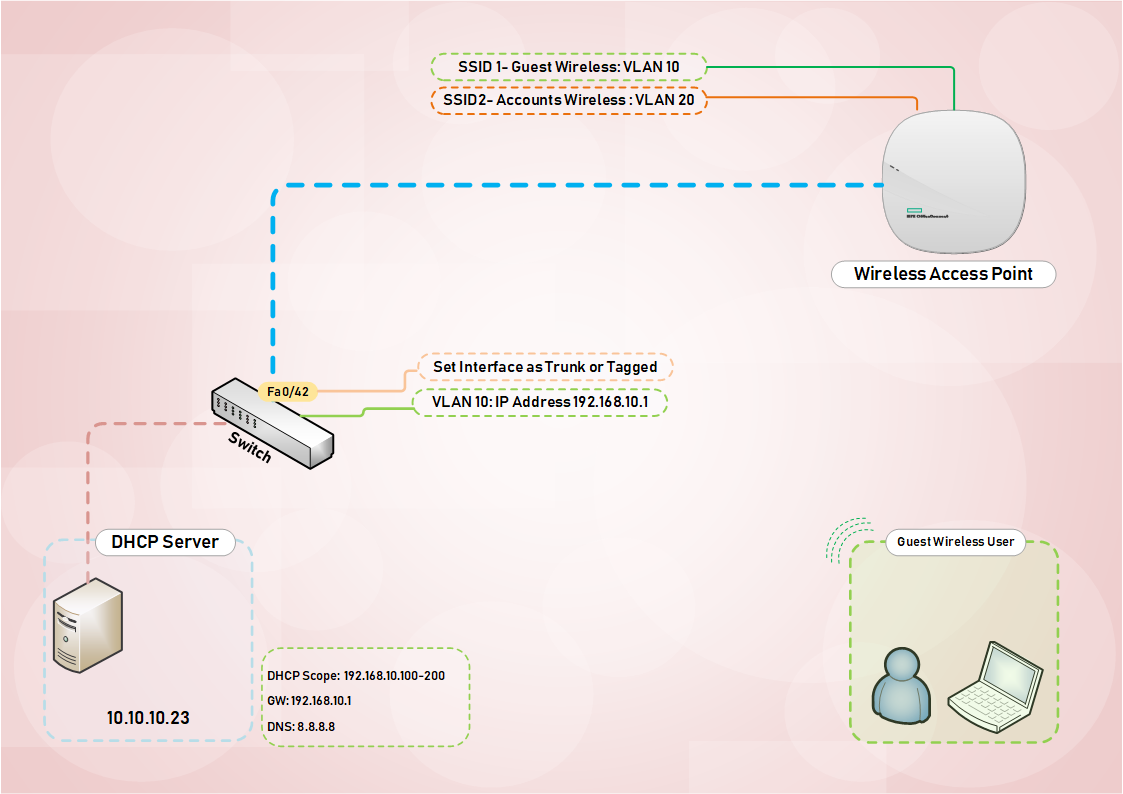
To configure priority management on your wireless network, you'll need to access your router's settings. The process may vary depending on your router's model and firmware. However, most routers have a similar interface for configuring QoS (Quality of Service) settings.
Step-by-Step Instructions
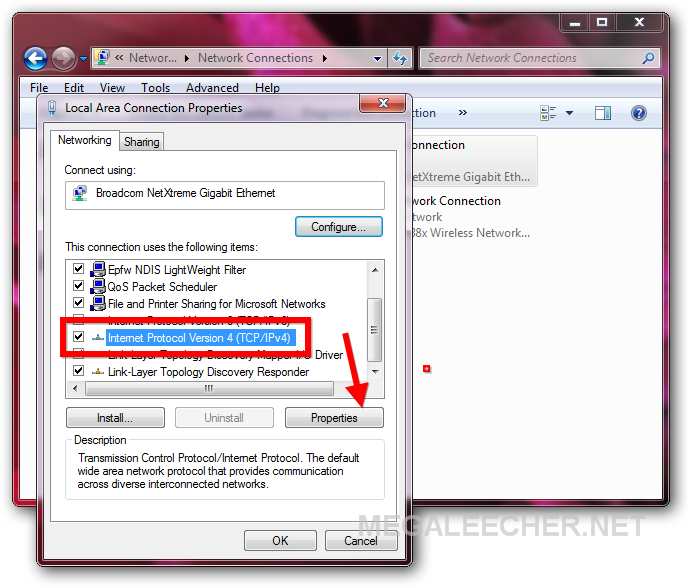
- Access your router's settings by typing its IP address in a web browser. The most common IP addresses for routers are 192.168.0.1 and 192.168.1.1.
- Log in to your router using your admin credentials.
- Look for the QoS or Advanced Settings section, depending on your router's firmware.
- Configure the QoS settings to prioritize your devices. You can specify the IP addresses or MAC addresses of the devices you want to prioritize.
- Save your changes and restart your router for the new settings to take effect.