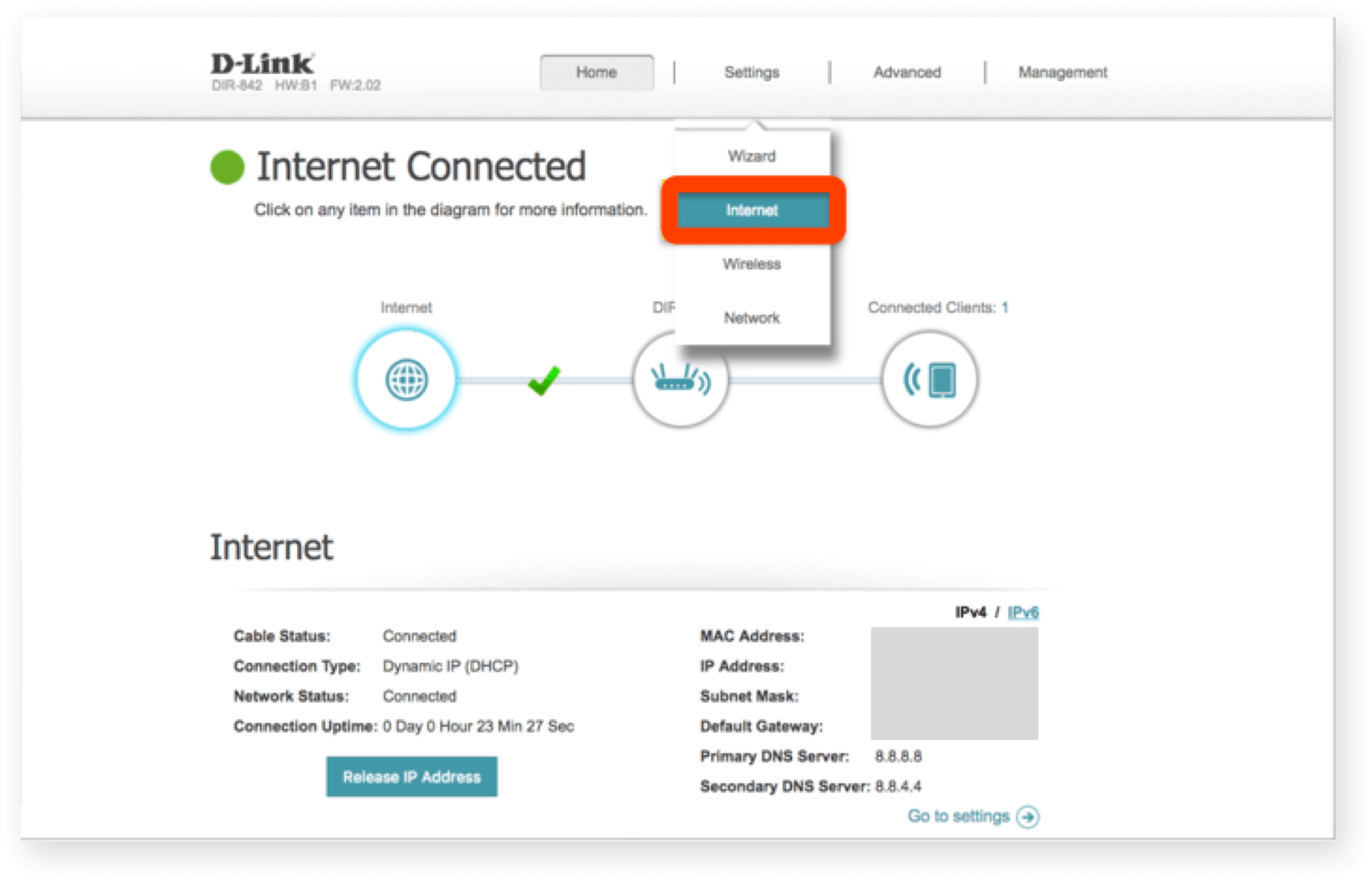
Complete Guide to D-Link Router Configuration Settings
D-Link routers are known for their ease of use and advanced features, but setting them up can be a daunting task for those who are new to Wi-Fi networking. In this article, we will guide you through the complete process of configuring your D-Link router, from initial setup to advanced features.
Step 1: Before You Begin
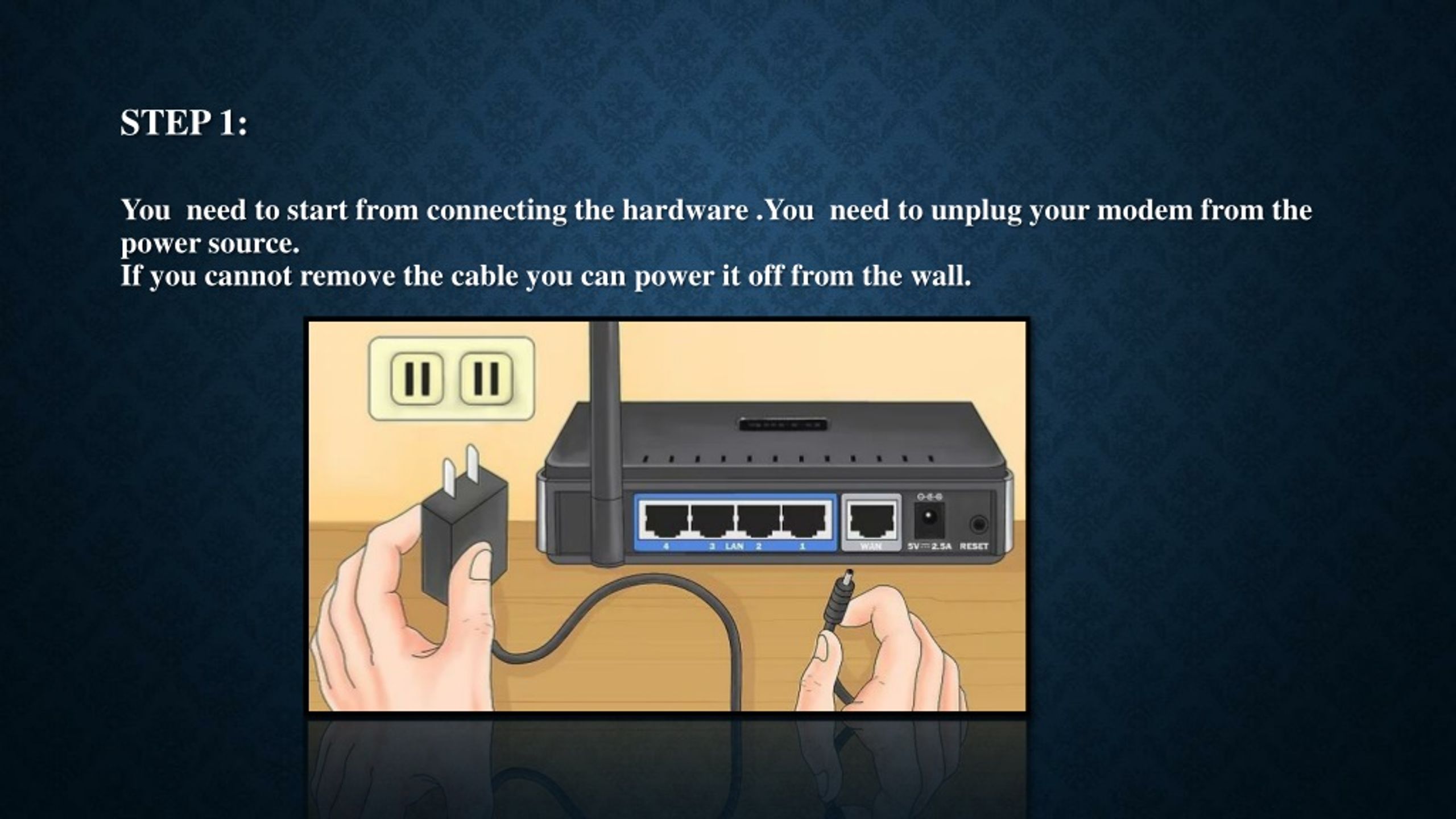
Before you start the software configuration, ensure that your D-Link router is properly set up and connected to your modem. This includes setting up your wireless network and following the instructions on the Quick Installation Card that comes with your router.
How to Connect to Your D-Link Router
Connecting to your D-Link router is the first step in configuring your network. To do this, follow these steps:
- Connect your router to your modem using an Ethernet cable.
- Connect a computer to the network using an Ethernet cable.
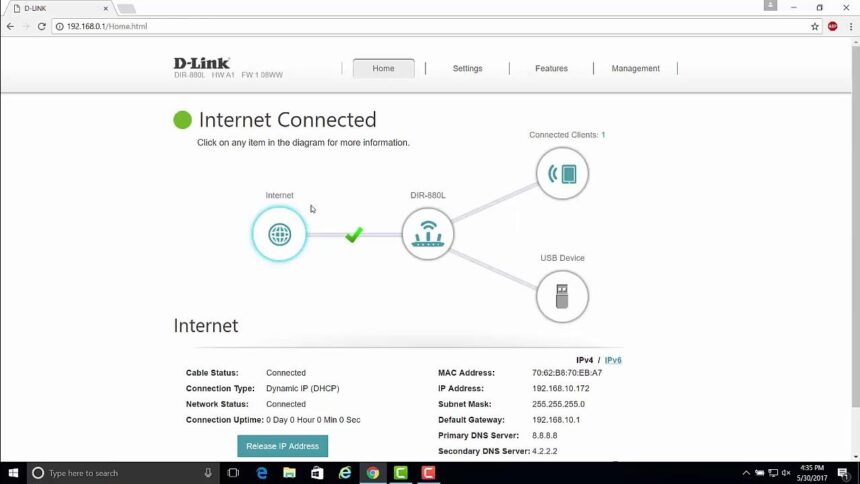
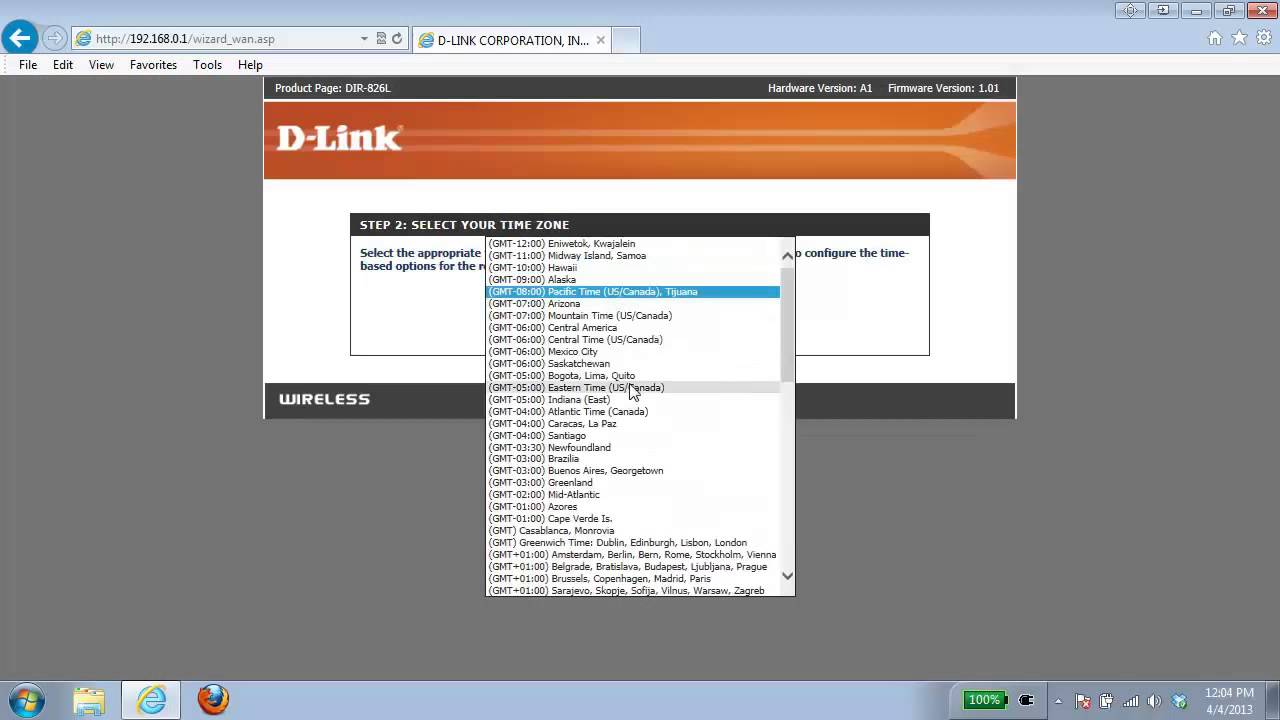
- Open a web browser and enter the default IP address of your router, which is usually 192.168.0.1.
- Log in to the router using the default admin credentials.
Step 2: Configure Your Wireless Network
To set up your wireless network, follow these steps:
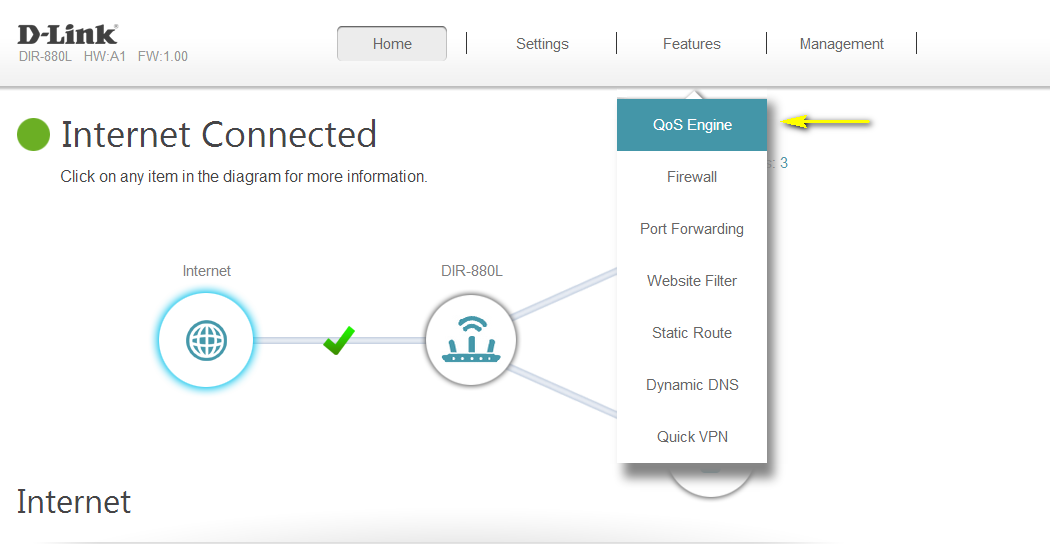
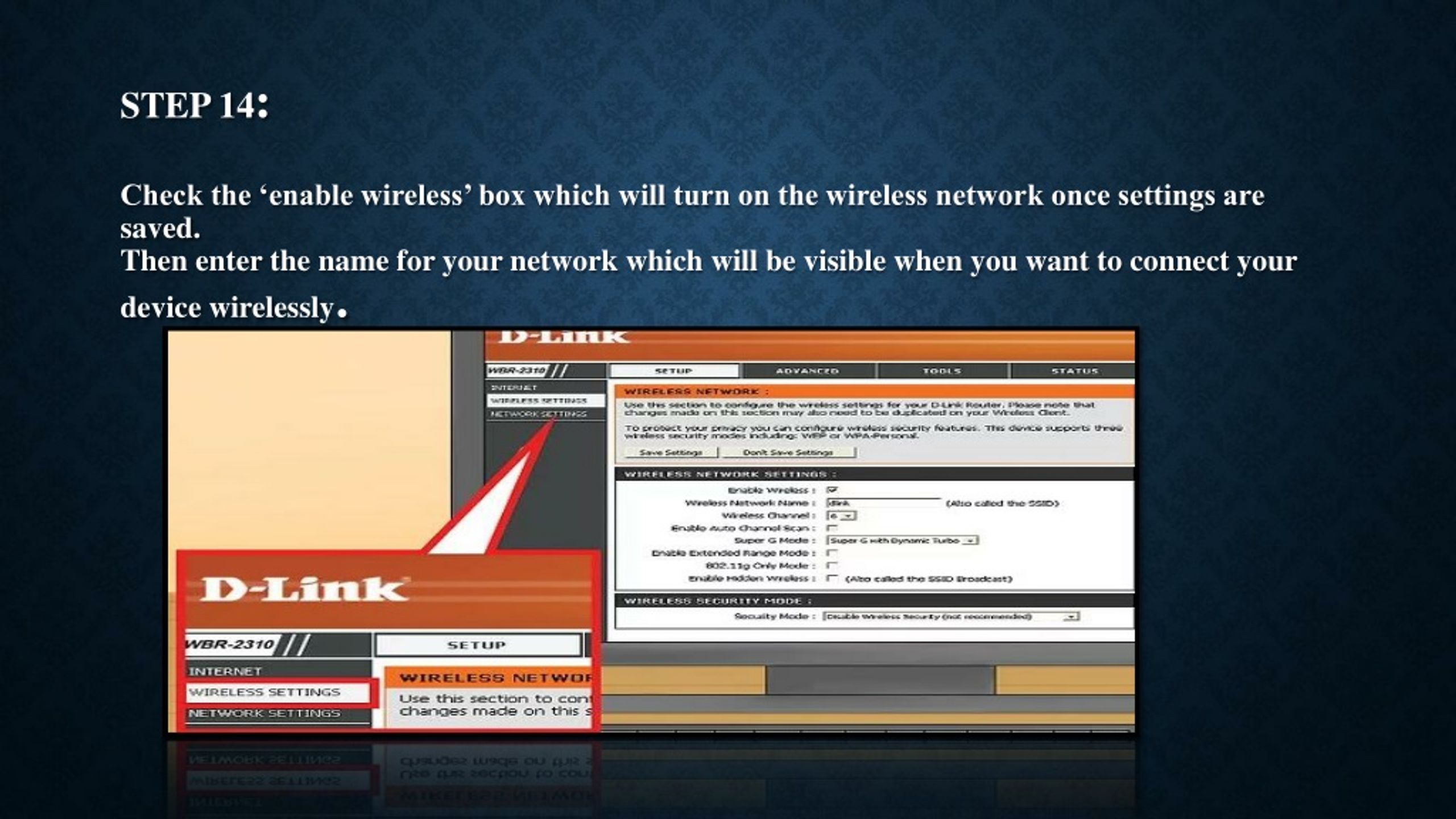
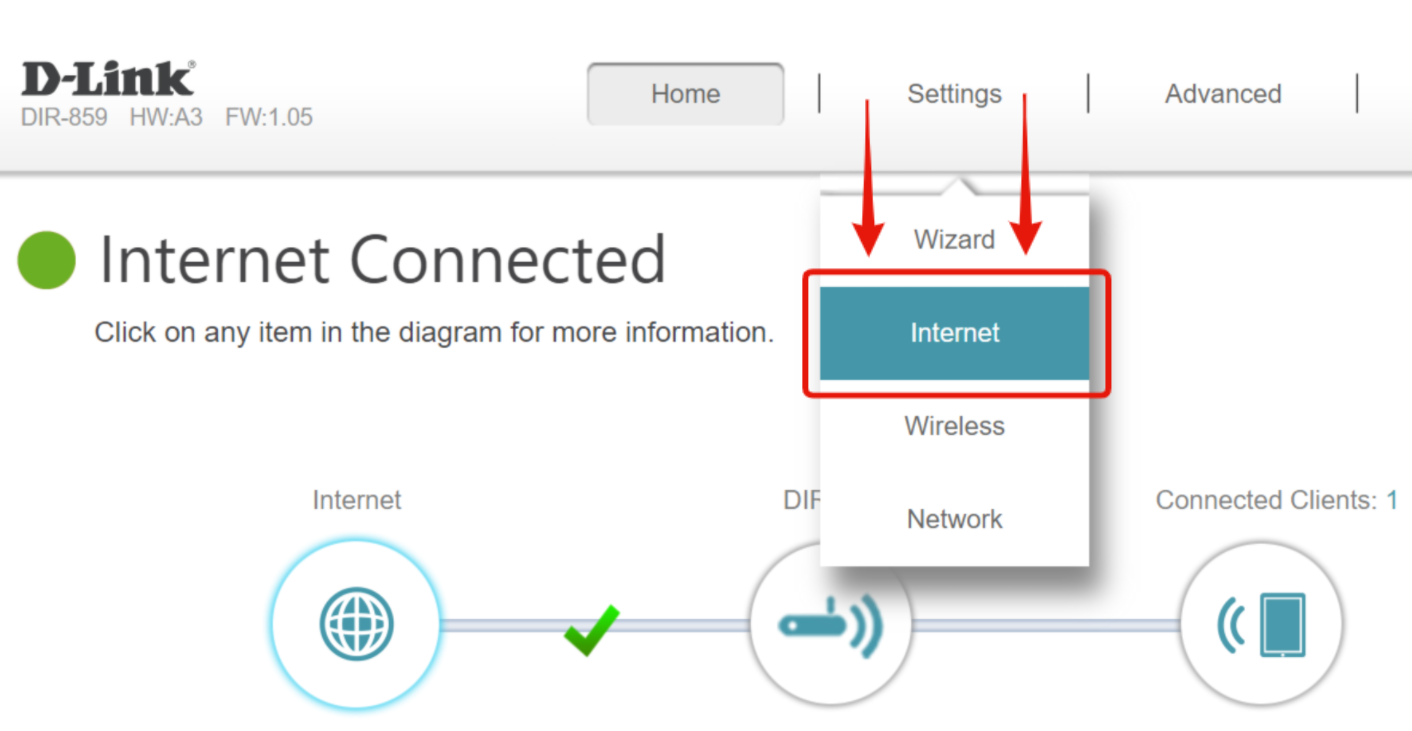
- Go to the Settings tab and select Wireless.
- Change the default wireless network name (SSID) to a unique name of your choice.
- Enter a strong password for your wireless network.
- Configure the wireless settings, such as channel and wireless authentication.